Return to Agilent Operation User Guide
The Agilent Wizard assists with sample location and experiment planning. At a minimum, you should ensure the objective setting on the Define Regions tab matches the infrared objective you plan to use.
Important note: The Agilent Wizard assists with experiment setup and planning, but does not affect the data acquisition step. All data acquisition is controlled through Resolutions Pro.
Collect 4X Image Overviews of Each Sample
You can take 4X visible overview images of your sample(s) to assist with navigation when the purge shield is on. This will be done for you by beamline staff if you are operating remotely.
-
Ensure the 4X objective is in place - this step cannot be completed remotely.
-
Mount sample(s) on plate, and mount on microscope
-
In the Agilent Wizard header enter User name, Project, and Sample Name of first sample
-
Open Imaging Method Editor in Resolutions Pro:
-
Select Method "FPA Imaging/4X ZnSe Overview.clm"
-
Visible Image: find focus
-
With joystick, mark corners for visible mosaic and Capture
-
Tip: If you are noting stage max/min positions while maneuvering around your sample to find corner positions, only use the coordinates provided by the Wizard as these will not be the same as on ResolutionsPro.
-
-
View "Captured visible image"
-
Click somewhere on the image to make a single red rectangle (IR grid)
-
Optional: Using Windows Explorer, copy the 4X
VisMosaicCollectImages_Thumbnail.bmpfromVisMosaicCollectImagesto Project folder
-
-
-
In the Agilent Wizard:
-
Click the "+" button next to "Visible image" list
-
Confirm ROI microscope setting
-
-
Repeat steps 3-5 for each additional mounted sample
-
In Wizard: Click "Add new Sample" and update sample name
-
-
In the Agilent Wizard, click the "Save" button.
Overview images can be restored in the case of computer restart using the "Restore" button. -
Close Resolutions Pro Imaging Editor window when finished adding overview images
.png?cb=391a4db71942055d673b696fb9504aa1)
Begin Experimental Workflows
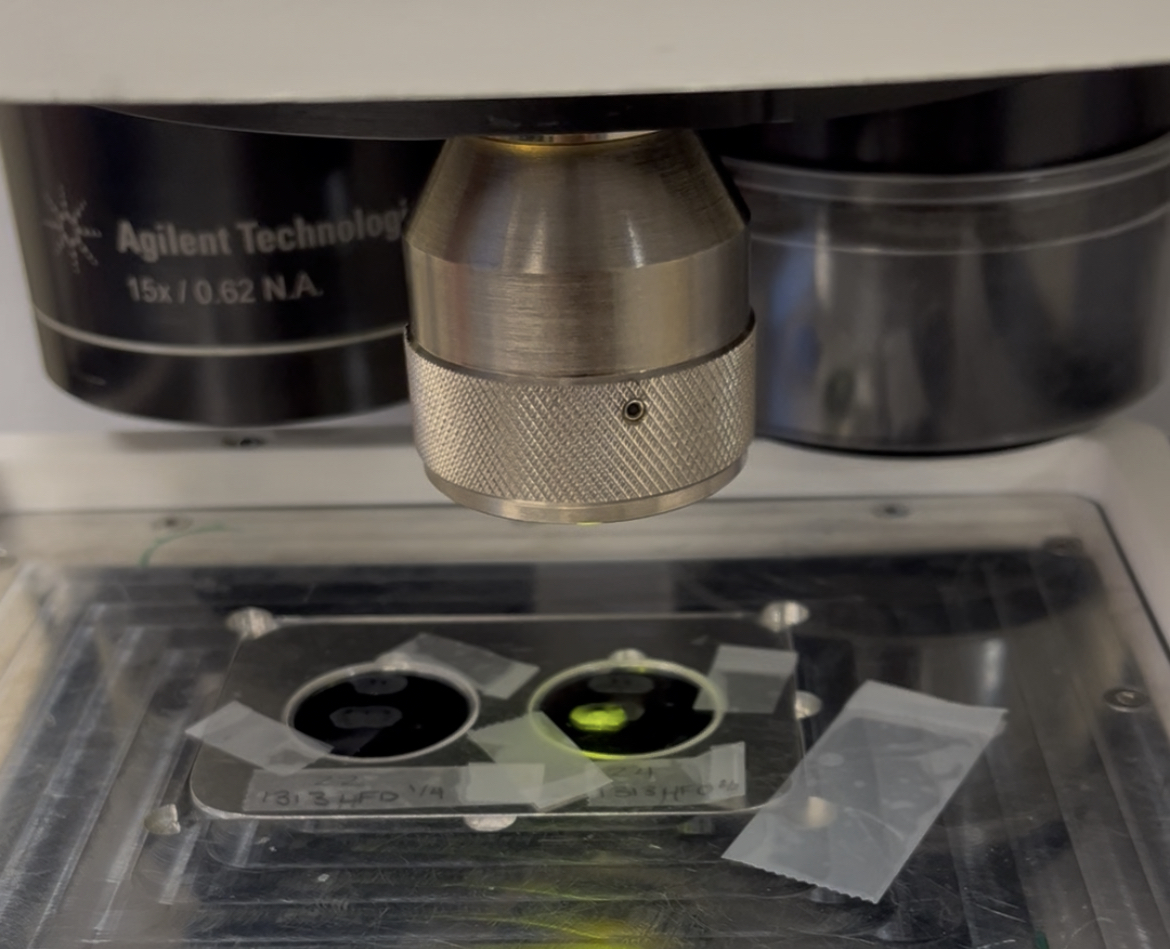
When transitioning from 4x overview image collection → IR measurements, remember to rotate the desired magnification objective in place and double-check that the condensor magnification matches the top and the purge shield is in place. The system is now ready to begin sample measurements.