This page provides information about remote control of the Mid-IR beamline workstations with NoMachine.
Connecting to the instrument computer
Connection to instrument computers are done using the software NoMachine. There are two ways to access NoMachine:
-
through a web browser or
-
by installing the NoMachine Enterprise Client.
Web Browser
Visit the following webpage on your computer: sra.lightsource.ca
-
Enter the credentials supplied by the beamline staff:
-
Username: Provided
nm-account -
Password: Corresponding password
-
Continue through the remaining prompts by selecting OK and Do Not Show Again where applicable. Leave all default settings unchanged.
NoMachine Client
Install NoMachine Enterprise Client:
Before beam time please download and install NoMachine Enterprise Client:
-
On your PC, navigate to: https://download.nomachine.com/enterprise/?product=enterprise-client
-
Follow the download instructions for the NoMachine Enterprise Client appropriate to your computer and operating system
-
Install the Client onto your computer
Setup your connection:
-
Start NoMachine Enterprise Client
-
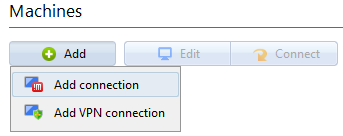
Select Add under machines → Add connection
-
Set connection settings:
-
Name: your choice
-
Host Address:
sra.lightsource.ca -
Port Number:
4000 -
Protocol:
NX
-
-
Uncheck the UDP box and click Add
-
If prompted about proxy settings, choose Don’t use a proxy (unless you are on a proxied network), Continue
Logging into the Beamline Computer:
-
Double-click the new connection to launch it.
-
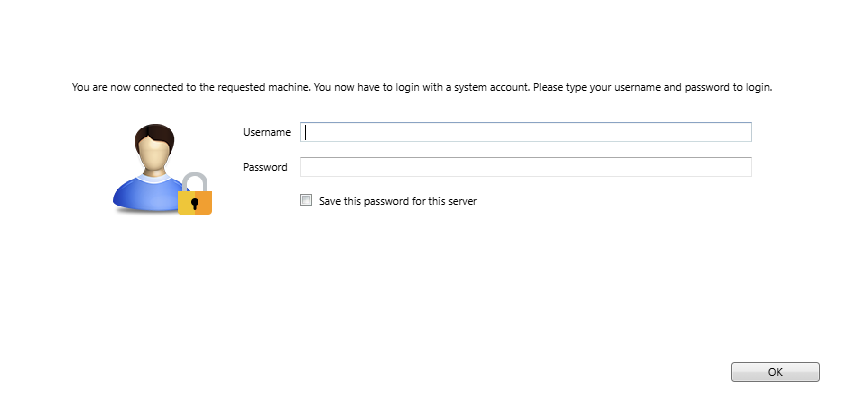
Enter Username and Password**
-
Enter the
nm-username and password provided by your beamline staff.
-
-
Accept the presented certificate fingerprint.
-
Double-Click the new connection to launch it.
-
Username/Password: The
nm-user and password. -
Click OK to all prompts and Do Not Show Again – do not adjust any settings.
**At the beginning of your beamtime you will be provided with the instrument username and a password enabling remote access for the duration of your beamtime.