Mid-IR Data Organization
Data collected at the Mid-IR beamline is organized by your project number. Data is further organized into two subdirectories for each project.
|
Project Folder (example: prj12G34567) |
project cycle number (12), project type (G/R/B), project number (34567) |
|
|---|---|---|
|
Sub-folder names |
|
|
|
Sub-folder contents |
raw data collected at the endstation |
modified data, user workflows, beamtime notes |
|
Sub-folder permissions: beamline computers |
read, write |
read, write |
|
Sub-folder permissions: user accounts |
read-only |
read, write |
All data collected at the Mid-IR beamline is accessible on Globus and is attached to your Canadian Light Source account and projects. To retrieve the data, please follow this step-by-step guide. Contact us if you need any assistance with the data transfer.
Access CLS Data on Globus
Globus delivers advanced file transfer and sharing capabilities to researchers no matter where their data live. Globus Connect Server makes it easy to add your lab cluster, campus research computing system, or other multiuser HPC facility to the Globus ecosystem. The CLS provides a Globus Connect Server endpoint that connects to our beamline data share, allowing users associated with scientific proposals access to their data.
Step-by-Step Guide
Log in
-
Access Globus.
-
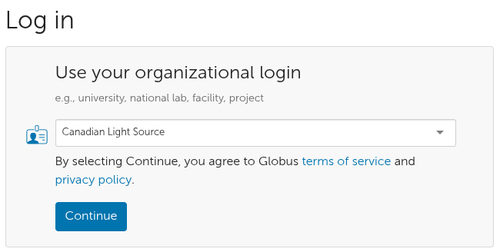
Select the Canadian Light Source as your institution. Click Continue. You will receive the familiar CLS sign-in page.
-
Enter your CLS username and password. Your first log-in will register you with Globus’ systems, which is important if other users want to share with you.
-
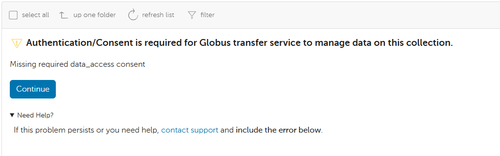
Authentication/Consent authroization may be required upon the first login. Click Continue to proceed.
File Manager | CLS Beamline Data
-
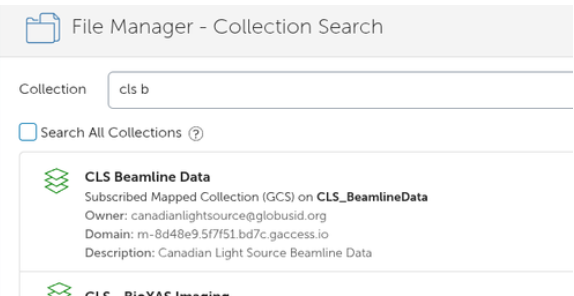
Go to the File Manager view and select "SEARCH"
-
Search for the "CLS Beamline Data" Collection - this is our CLS endpoint on Globus
Path to Project Data
-
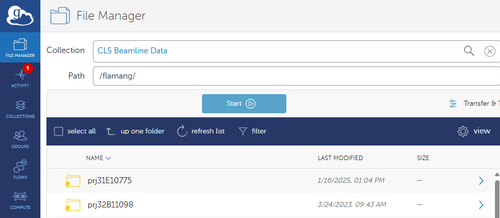
The CLS Beamline Data Collection will open with your CLS username as the Path and display any project folders you are involved in.
-
You will see the project you are interested in transfering data from.
Set-up Personal Endpoint
-
In order to transfer the data to your personal computer, institution workstation or computing system you must first setup a personal endpoint. Your institution/you may already have this configured. If not:
-
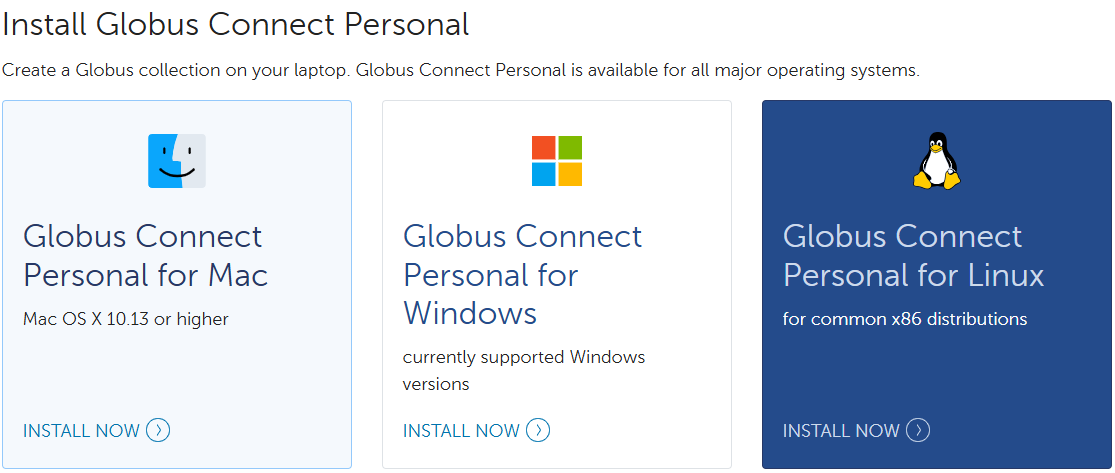
Navigate to Globus Connect Personal
-
Install the Globus Connect Personal for your operating system
-
Launch Globus Connect Personal and 'Log In' to authenticate with Globus and begin the Collection Setup process.
-
Enter Collection Details for your Personal Setup and 'Save'
Transfer Data from CLS to Your Endpoint
-
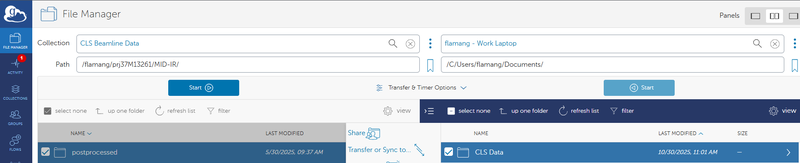
Select the files you wish to transfer to your computer
-
Select the desired destination
-
Click Start on CLS Beamline Data side.
-
The two-pane view works well for this.
We're here to help!
If you encounter any issues, please let us know. Contact us!